BITLOCKER
Make sure its off or you will get locked out of windows
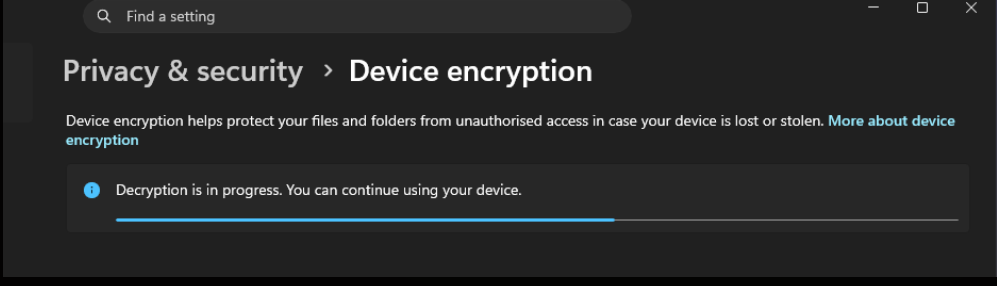
Method 1:
Turn off BitLocker from Windows Settings
For Windows 11 Home or devices using Device
Encryption:
- Open Settings
- Go to Privacy & security
- Click Device encryption
- Turn Device encryption off
- Wait for Windows to finish decrypting the drive
Microsoft lists Device Encryption under Windows Settings and notes
that it can be turned on or off from there.
Method 2: Turn
off BitLocker from Control Panel
For Windows Pro, Enterprise, or Education:
- Press Start
- Search Manage BitLocker
- Open BitLocker Drive Encryption
- Find your main drive, usually C:
- Click Turn off BitLocker
- Confirm the warning
- Wait until decryption is complete
Do not restart or shut down the PC while decryption is running unless
Windows says it is safe.
Method 3: Turn off
BitLocker using CMD
Open Command Prompt as Administrator, then run:
manage-bde -status
This shows which drives are encrypted.
To turn off BitLocker on the C: drive:
manage-bde -off C:
To check progress:
manage-bde -status C:
Microsoft’s manage-bde -off command decrypts the drive
and turns off BitLocker; once decryption finishes,
Method 4: Turn off
BitLocker using PowerShell
Open PowerShell as Administrator, then run:
Get-BitLockerVolume
To disable BitLocker on C::
Disable-BitLocker -MountPoint "C:"
To check progress:
Get-BitLockerVolume -MountPoint "C:"
Microsoft says Get-BitLockerVolume shows BitLocker
volume information, and Disable-BitLocker disables
BitLocker and starts decrypting the volume.
Suspend vs turn off BitLocker
Suspending BitLocker is not the same as turning it off.
Use suspend when you are doing a BIOS update, TPM change, Secure Boot
change, or hardware change and want to avoid recovery key prompts:
manage-bde -protectors -disable C: -RebootCount 1
Resume BitLocker:
manage-bde -protectors -enable C:
Suspending BitLocker does not decrypt the drive. It only temporarily
makes the key available so Windows can boot normally during changes.
Microsoft’s PowerShell documentation explains that suspension does not
decrypt data on the volume.
Best simple command
For most people, this is the easiest command:
manage-bde -off C:
Then check progress:
manage-bde -status C:
Wait until it says the drive is fully decrypted. After that,
BitLocker is off.