Disable Secure Boot & TPM
- Type “System Information” in the Windows search bar and open
it.
- In the System Information window, look for information related to
“Secure Boot Status” or “Secure Boot State.”
- Make sure that Secure Boot is OFF. If it’s enabled,
you’ll need to disable it.
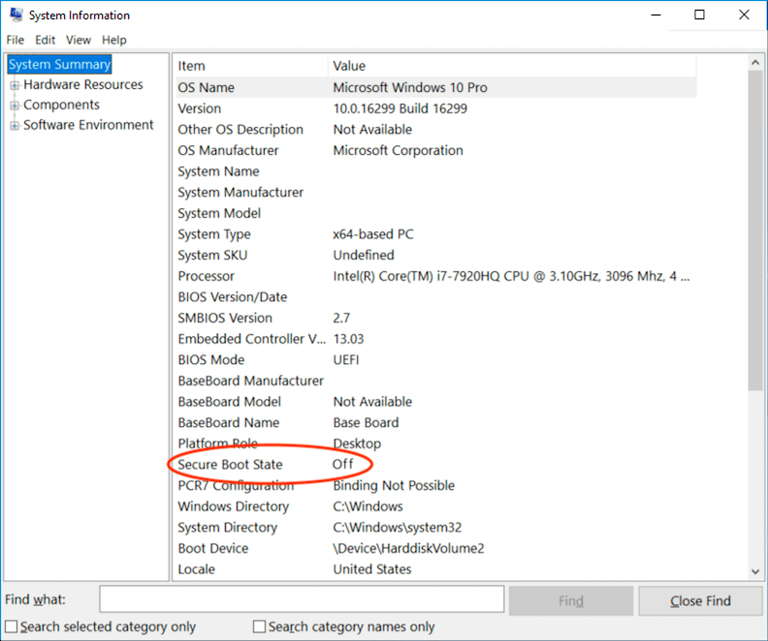
If
Secure Boot is enabled, you can follow these general steps to disable
it:
- Look up instructions on how to disable Secure Boot for your specific
motherboard. You can use YouTube tutorials or consult your motherboard’s
manual.
- Expand the Secure Boot guide in the System Information window. It
will display instructions for disabling Secure Boot for different types
of motherboards.
- Follow the guide that corresponds to your motherboard model.
- Once in the BIOS setup, navigate to the Security or
Advanced tab.
- Look for TPM or PTT (Platform Trust
Technology).
- Set it to Disabled.
- Some systems may list it as TPM 2.0 or
Security Device. Simply disable it.
After disabling Secure Boot & TPM, restart your computer for the
changes to take effect.