Thunex External B07
Full Ranked / Cleaner
Guide:
Use the instructions or files supplied with your OnlyESP
order.
Setup:
Disable
Real-Time Protection & Antivirus Software
Disable Exploit Protection (Google How To Do This)
Enable HyperV
Enable Virtualization
Disable Memory
Integrity
Disable
Other Anti Cheats
Disable Overlays:
- Turn off all overlays (Discord, GeForce, Medal, Radeon, etc.).
Disable Any 3rd Party Firewalls
Disable
Vulnerable Driver Blocklist
Sync Date
& Time
Use the file or instructions supplied with your OnlyESP
order.
Step 2: Enter License Key
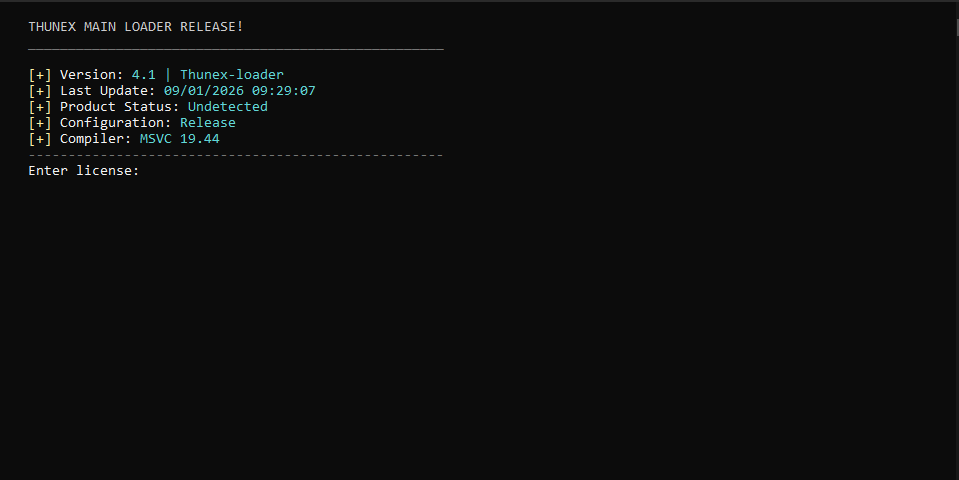
- Copy your license key
- Paste it into the input field
- Press Enter
License Verification
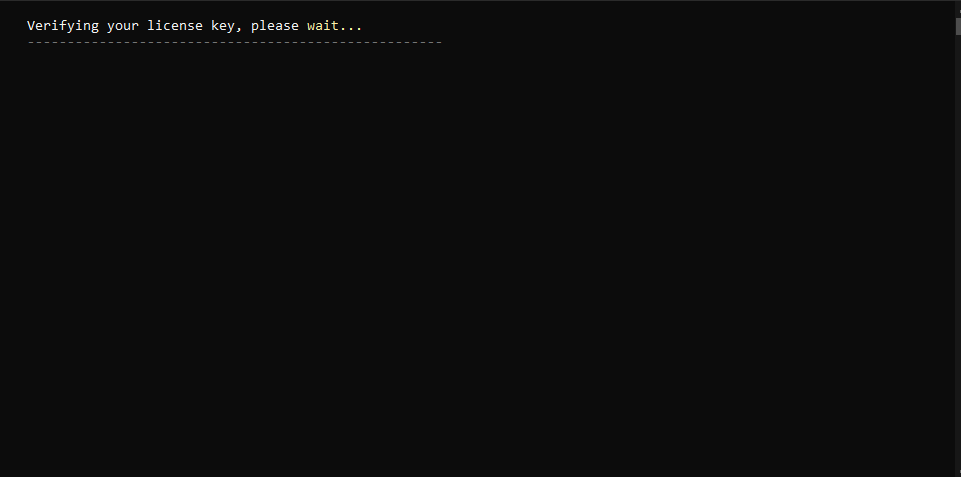
⏳ Please wait while your license is being verified. This usually
takes **1 to 10 minutes**, depending on server status.
If you face any issue, you can message the seller through Discord
order chat.
- Launch Game
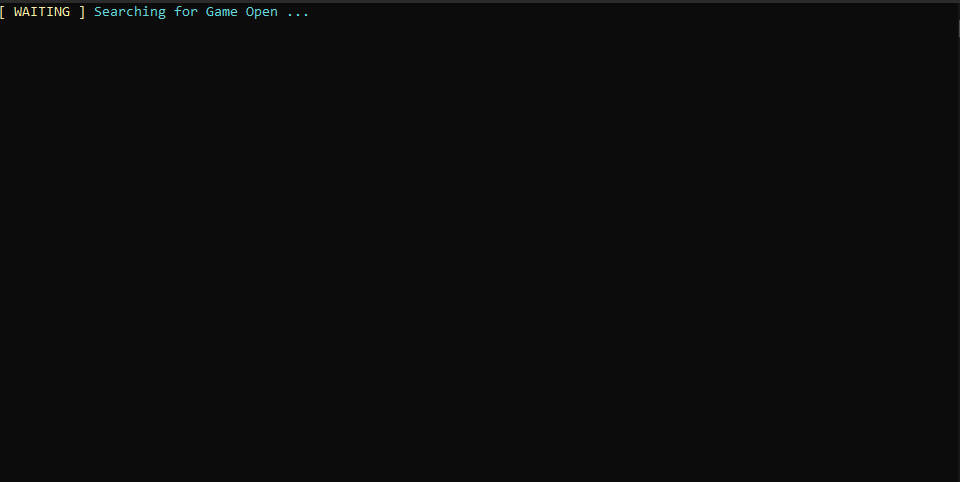
- Launch the game only.
- After a few seconds, the game will close
automatically.
- Once it closes:
- ❌ Do NOT reopen the game
- ✅ Leave it closed
- Continue with the loader steps.
- Downloading Files
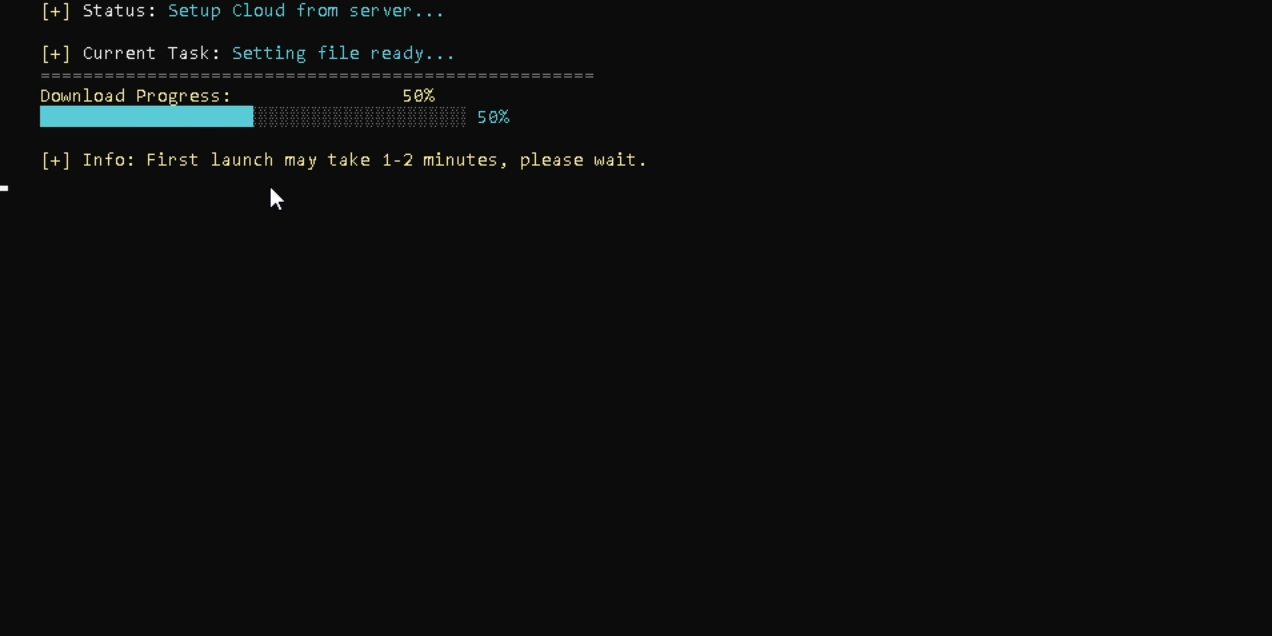
📦 Files will download automatically. Do not click anything, just
wait.
If you face any issue, message the seller through Discord order
chat.
- Select Game
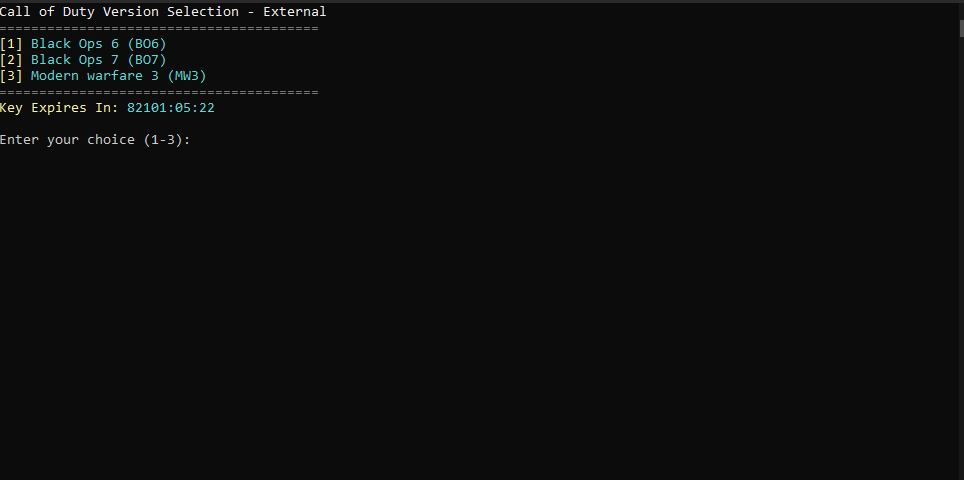
Choose your game:
- Black Ops 6
- Black Ops 7
- Modern Warfare
Note: Type the number only (1, 2, or 3) Do NOT type
the game name, just enter the number and press Enter.
- Select Platform
Choose your platform:
Note: Type the number only (1, 2, or 3) Do NOT type
the platform name, just enter the number and press Enter.
- Popup: Do Not Click OK Yet
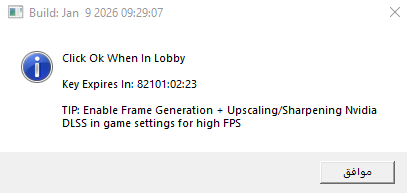
Do NOT click OK yet.
- Launch the game
- Enter the lobby
If the game crashes, updates, or restarts:
- Close the game
- Close the loader
- Reopen the loader and repeat
This ensures best results.
- Inside the Lobby
Before clicking OK, apply recommended graphics settings. (Scroll down
to Error 2!)
After that:
- Click OK
- Menu will appear instantly
Note: Menu Toggle Key = Insert
Everything is ready. If you have followed the steps correctly
then Thunex will run smoothly. Enjoy!
Troubleshooting:
Error 1:
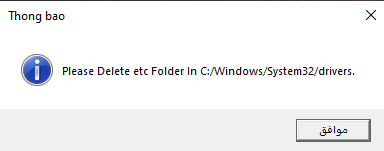
Fix:
- Press Windows + R on your keyboard.
- Type
drivers and hit Enter.
- Look for a folder named etc.
- Right-click the folder and click Delete.
- Try launching the loader again — the issue should now be
resolved.
Error 2: ESP Issues (Laggy, Stuttering, Etc…)
Fix:
- Close Programs That May Cause the Issue
Before changing any in-game settings, make sure the following are
done:
- Fully close all recording software.
- Make sure Discord overlay is disabled.
- If you are streaming on Discord, stop the stream
completely.
- If your PC is on the weaker side, close applications that put
pressure on your system, such as:
- Background programs
- Animated wallpapers
- Any app consuming high CPU or GPU usage
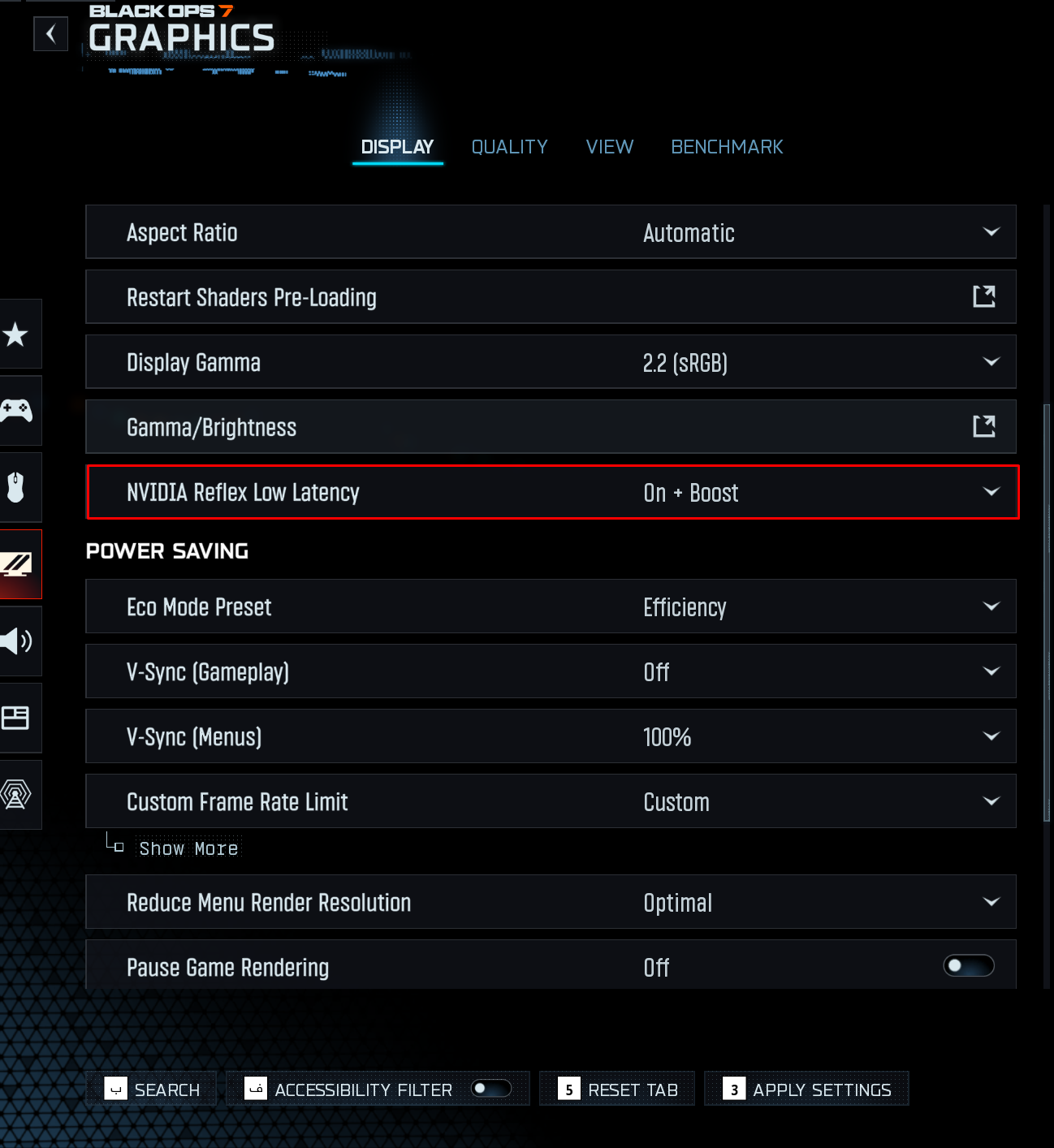
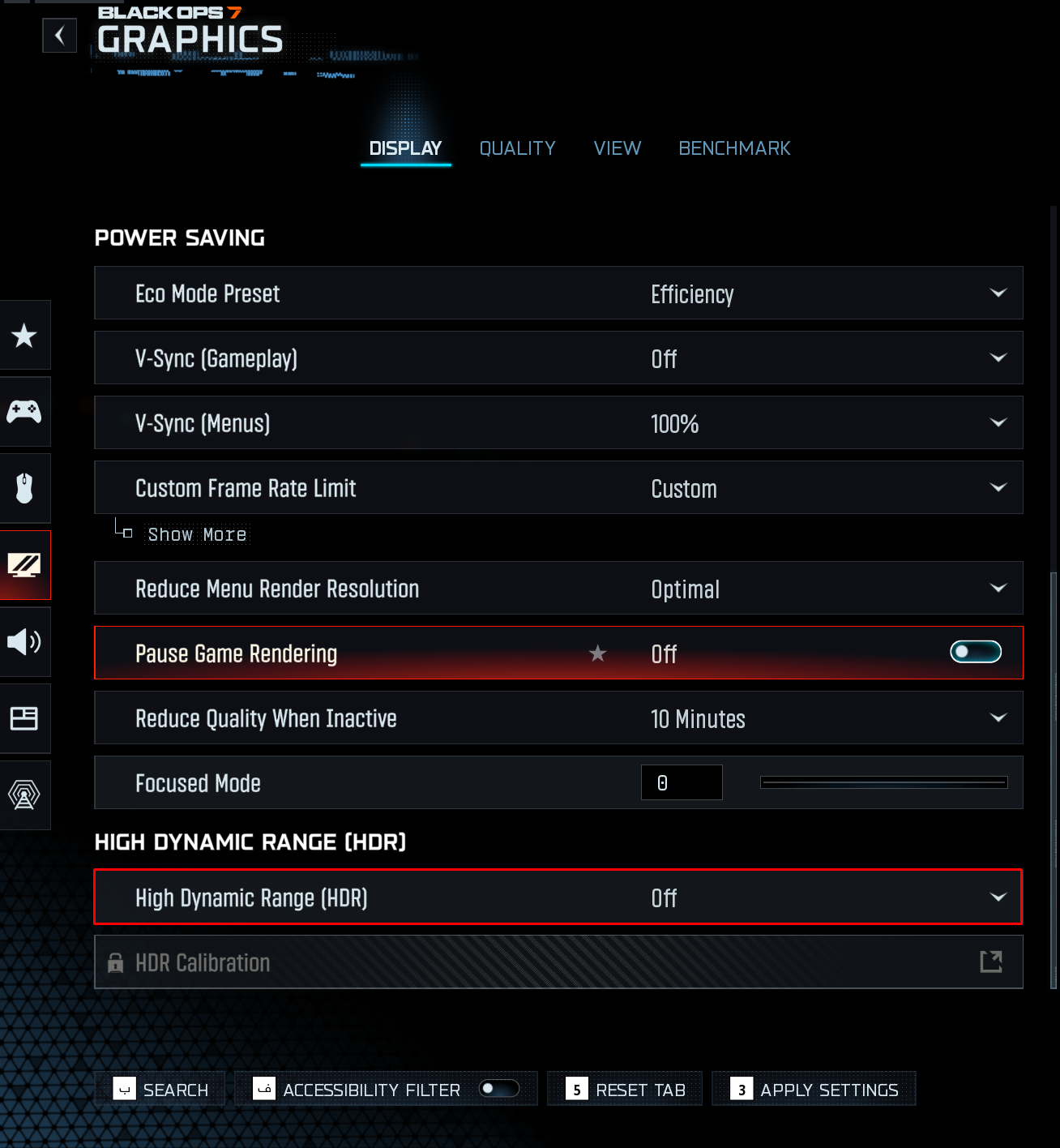
- Display Settings
Adjust Main Display Settings
Go to the Display section and change the settings exactly as shown in
the image below. (The options marked in red are especially
important):
Disable HDR
Next, make sure HDR is disabled as shown in the image below:
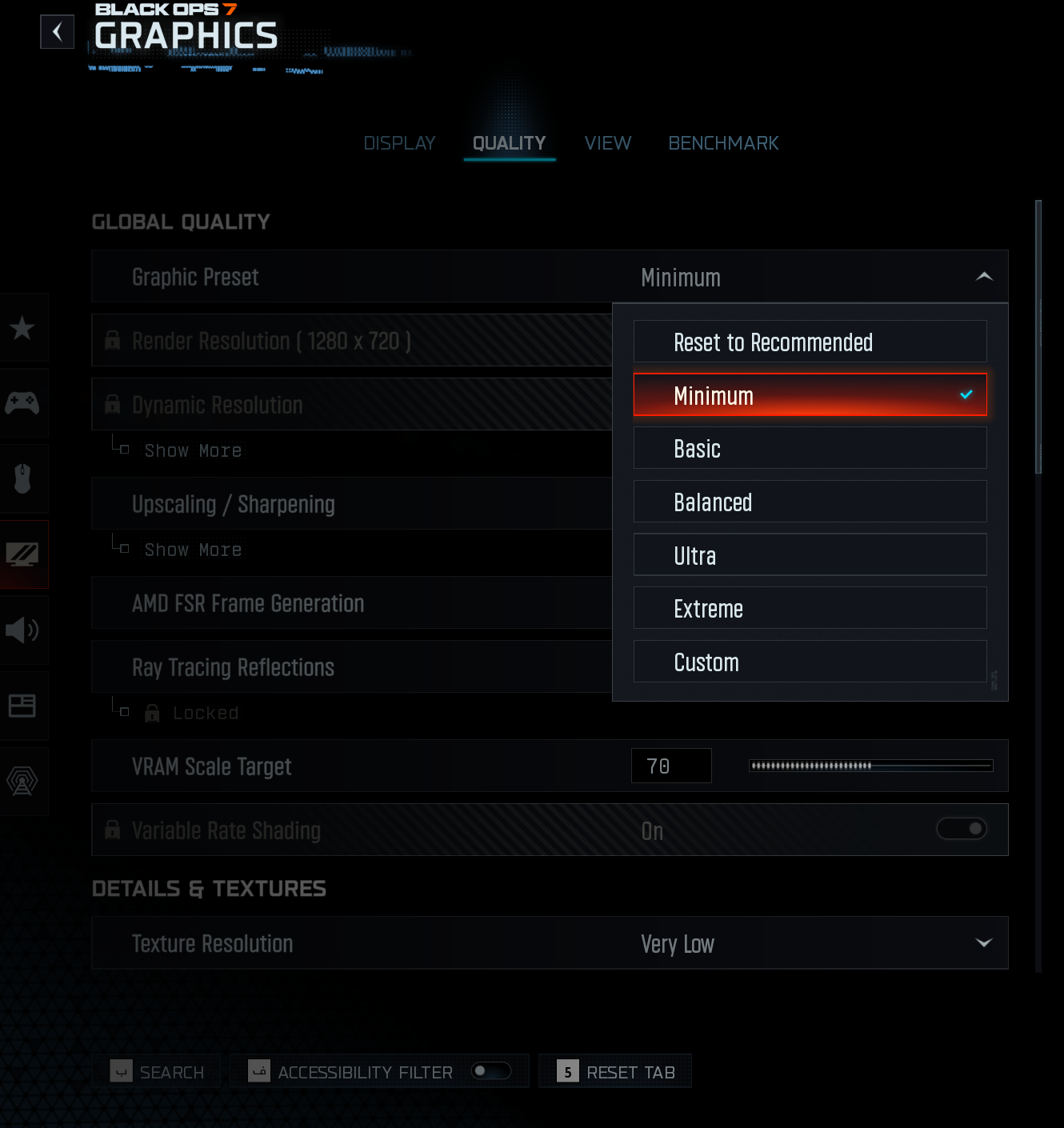
Additional Display Settings
Apply the following settings in the Display section exactly as
shown:
First image:
Second image:
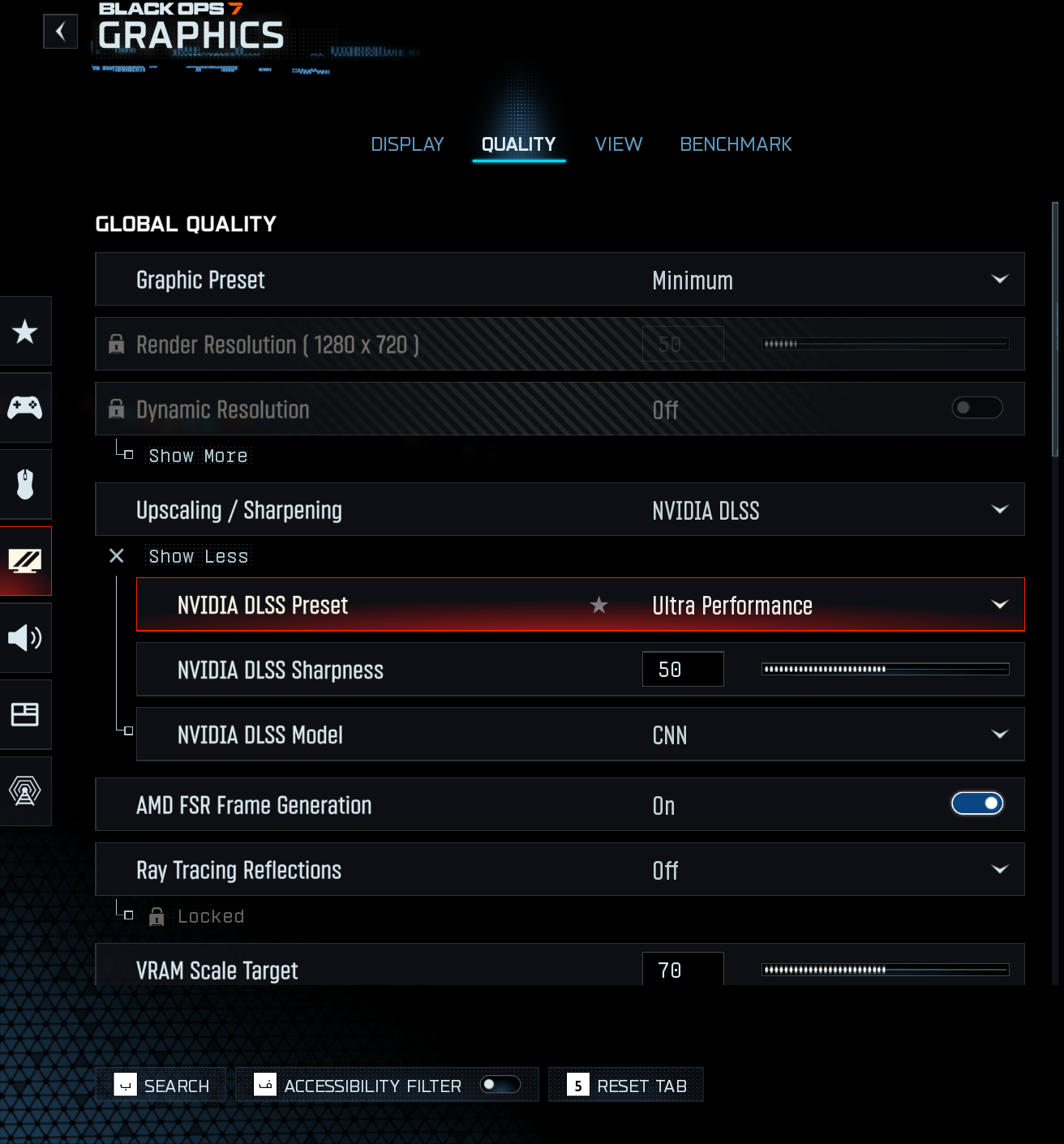
Note About Frame Generation:
- If you do not have the option AMD FSR Frame Generation
- Use the following option instead:
- NVIDIA Frame Generation
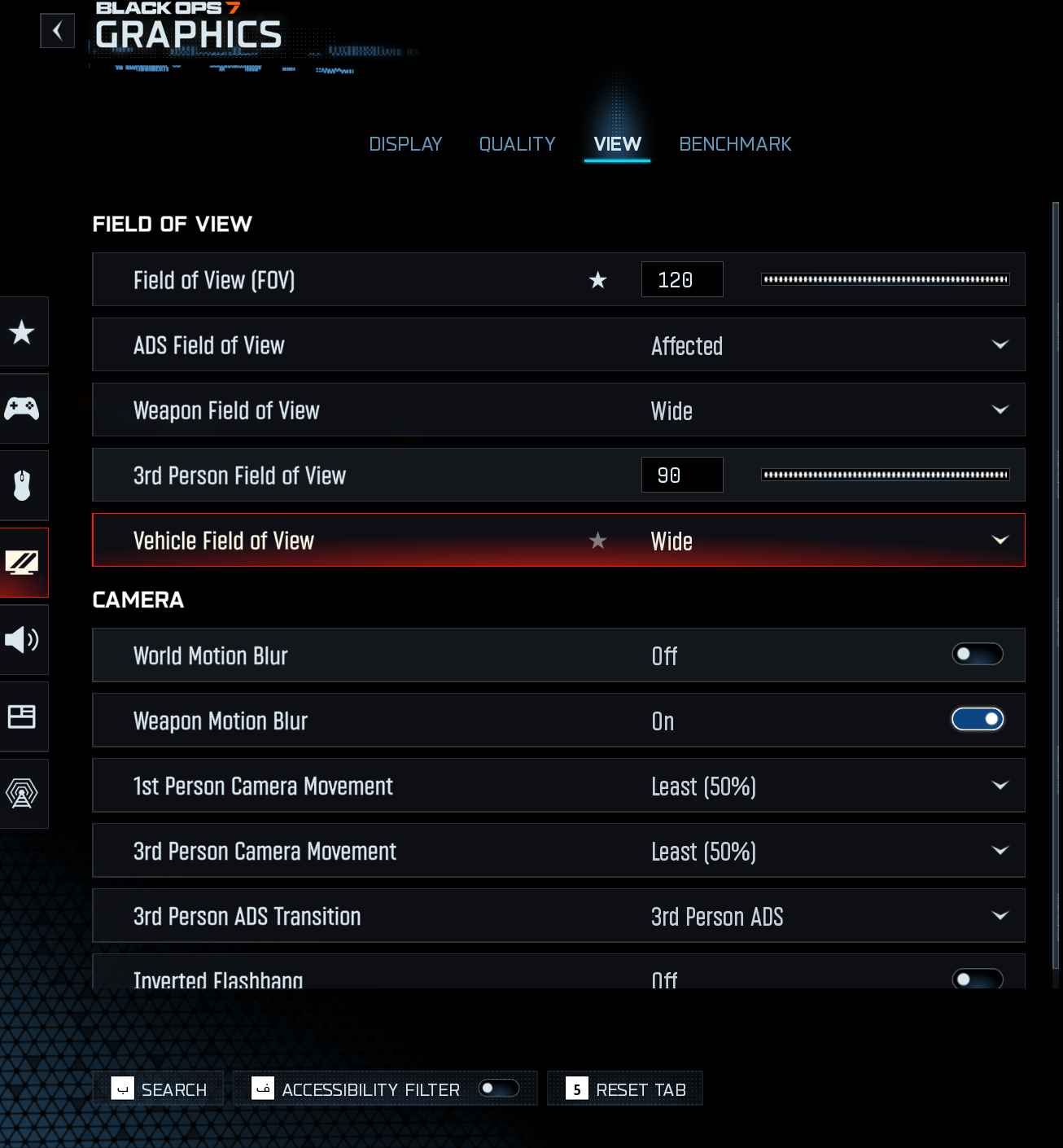
- View Settings
After finishing the Display settings, go to the View section and
apply the settings exactly as shown in the image below:
After applying all the steps above in order:
- System load will be reduced
- ESP will run much smoother
- ESP lag or stuttering issues will be significantly reduced
Error 3: Controller Issues
- This is for users who have issues with the controller not working or
glitching sometimes. Follow the steps in order to make sure everything
works correctly.
Fix:
- Make Sure the Controller Is Wired
- Make sure the controller is connected using a cable.
- Do not use Bluetooth.
- A wired connection is more stable and prevents glitches.
- Reset Everything
- Close the game completely.
- Close the cheat if it is running.
- Unplug the controller cable.
- Plug the controller cable back in.
- Start the cheat.
- Then start the game.
- Enable Controller from the Menu
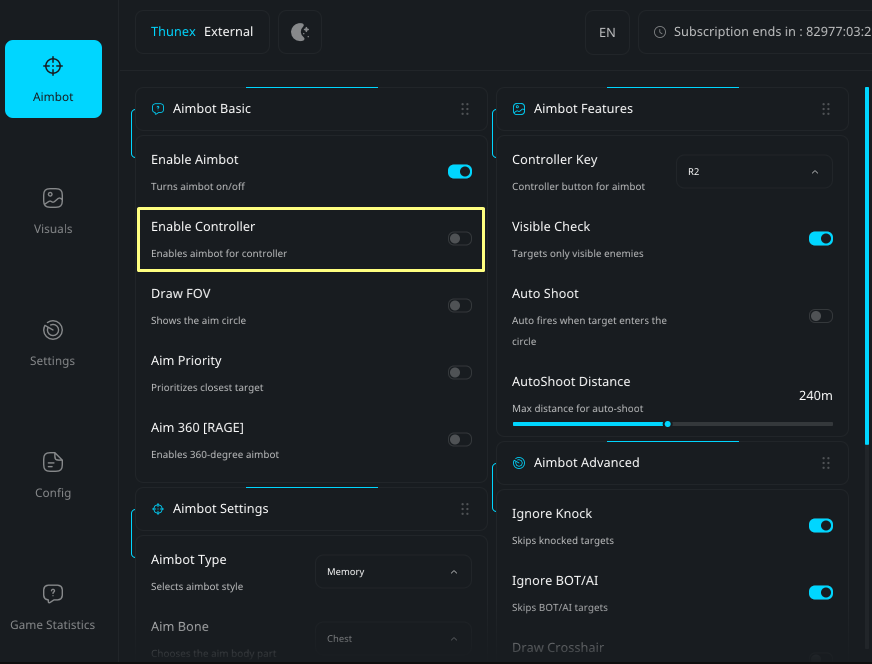
- Enable the controller option as shown in the image.
- Select the Controller Button
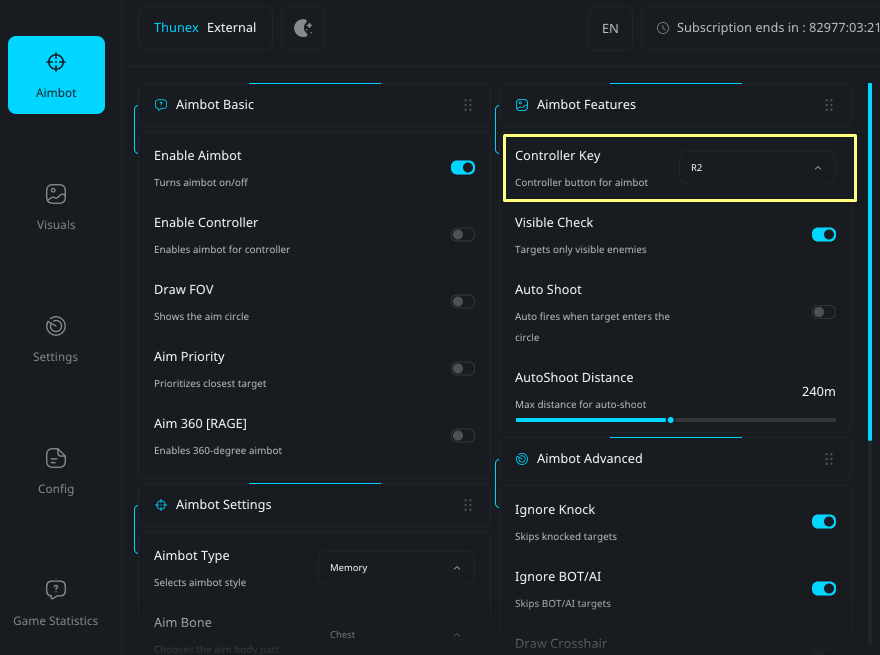
- Select the controller button from this section.
If other buttons do not work properly:
- Set the button to L2.
- Open the in-game settings.
- Change the aim activation button to L2 as
well.
- Adjust Smoothness for Testing
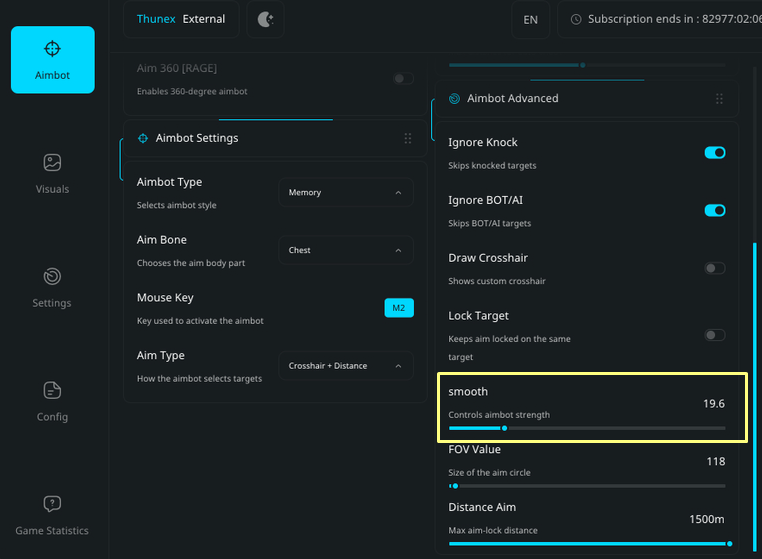
Lower the smoothness value all the way down for testing.
- Test in a Real Match
- Enter a real match.
- Do not use private matches.
- It is recommended to choose a mode like Nuketown.
- Enable aim and test if it locks correctly.
If it works, everything is set.
- Apply Light Settings After Confirmation
- Keep the controller option enabled.
- Set the rest of the options to light settings.
Things
Customers Should Know Before Using Thunex
Before Using Thunex
Before using Thunex, we recommend using the built-in Cleaner
first.
The Cleaner helps:
- Clean important trace files.
- Prepare your system properly.
- Reduce setup issues before using Thunex.
A full Cleaner guide from A-Z should be followed before
first use.
Do I Need to Use the Cleaner Every Time?
No.
You only need to use the Cleaner once before your first use.
After that, only use it again if you receive:
This could happen after:
- 1 day
- 1 week
- 1 month
- Or later
If everything is working fine, there is no need to use the Cleaner
again.
What If I Do Not Want to Use the Cleaner?
No problem.
You can reinstall Windows using a USB flash drive instead.
Make sure to:
- Fully wipe everything.
- Install a fresh copy of Windows.
This method also works and achieves the same goal.
Does Thunex Include a Spoofer?
No.
Thunex does not include a normal spoofer.
Thunex provides a method to bypass:
However, it does not work like a normal spoofer where you simply:
- Launch.
- Play.
Before using Thunex, you must first:
OR
Important Note
The HWID bypass achieves the same goal as a spoofer, and may even be
better because it also supports Ranked mode.
The only extra step required is using the Cleaner or reinstalling
Windows first.
How Does the HWID Bypass Work?
You do not need to know the technical details.
All you need to do is:
- Follow the steps properly.
- Use the Cleaner if needed.
- Run Thunex normally.
Any extra technical details are not required for customers.
What Should I Do Now?
Choose ONE option:
Option 1
- Use the built-in Cleaner.
Option 2
- Reinstall Windows completely using a USB flash drive.
After that:
- Run Thunex normally.
- If you have a HWID ban or TPM ban, do not log into the game without
Thunex running.
That is it.
If someone gets banned quickly, in most cases they did not follow the
steps correctly.
Support
If you or your customers face any issues, contact support through
Discord.
BSOD FIX:
Try reinstalling your GPU drivers, then restart your PC and launch
the application again.
A clean GPU driver reinstall usually resolves this issue. After
rebooting, test it once more — it should work normally.
Steps:
Reinstall your graphics card drivers.,
Restart your PC.,
Launch the application/game again and test.
LOADER ERROR -
Libcurl.dll
Download the required DLL files using the button below:
Download DLL Files
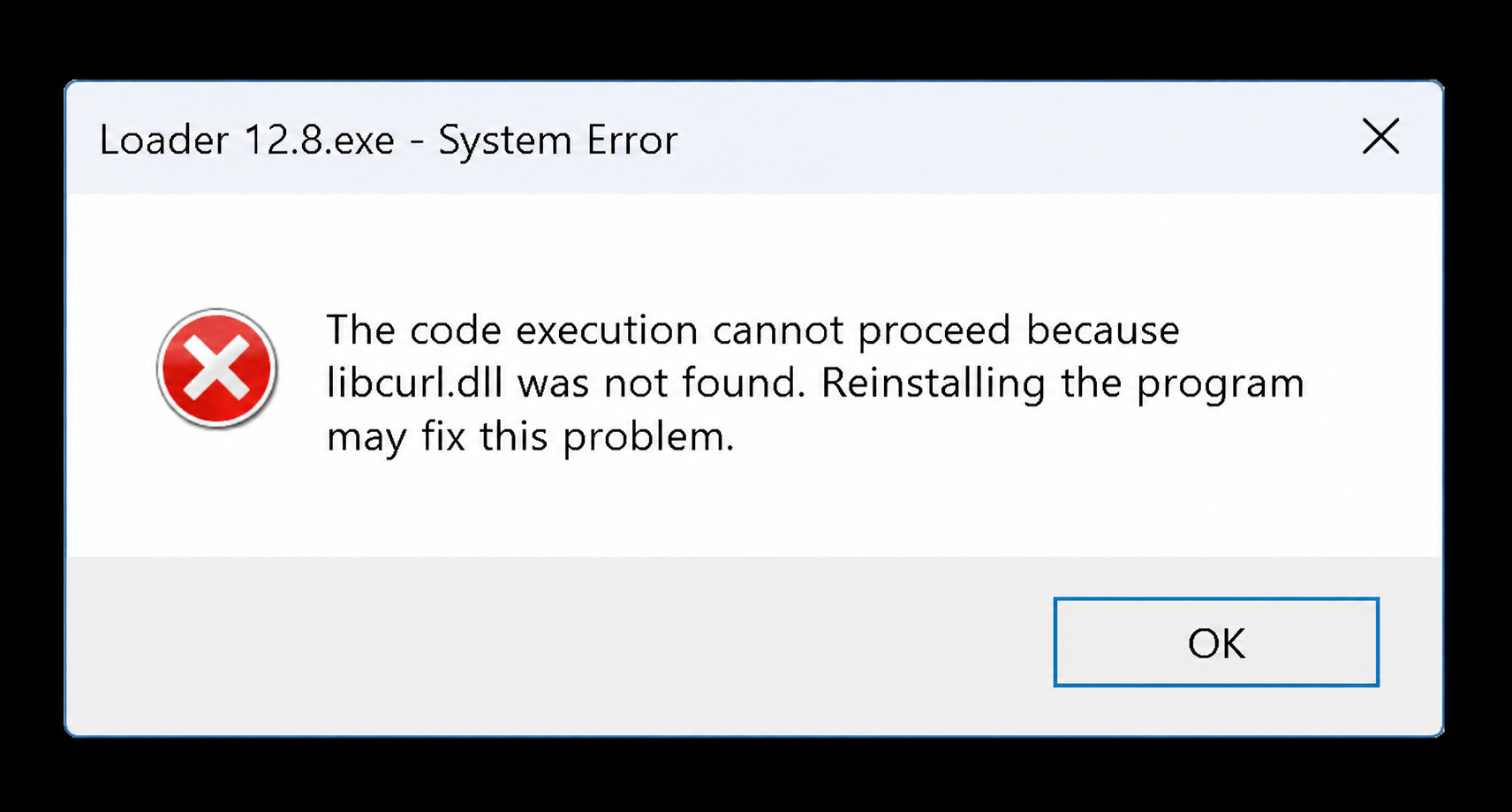
Check the Files
Once the download is complete, make sure you have the following two
files:
Make sure the filenames match exactly and that both files are
outside any compressed archive.
Move the Files to the
Loader Location
Move the following files to the same location as the Thunex
loader:
Examples
- If the loader is on your Desktop → place both files
on your Desktop.
- If the loader is inside Downloads → place both
files inside the Downloads folder.
Simply put: the Thunex loader and both DLL files
must be in the same location.
Launch Thunex
After moving both files to the correct location:
- Launch the Thunex loader again.
- Try running it normally.